
Online completion overview
Managers can immediately see which tasks are completed, which are pending, and which were not completed by the required deadline.
Clear work assignment on mobile
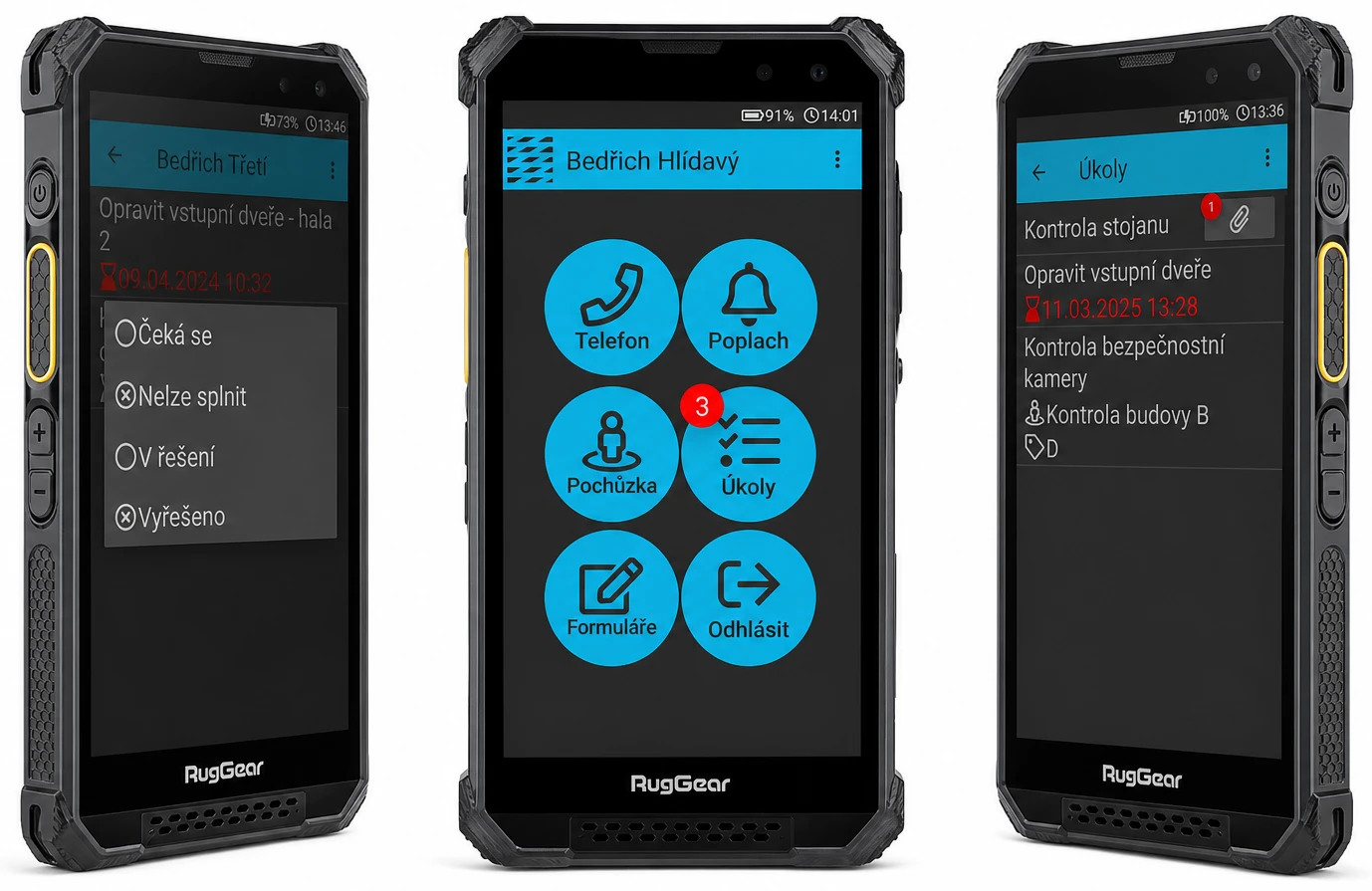
The worker has the task directly in the mobile app, including the description, deadline, attachments, and completion method, so there is no confusion during information handover.
Support for routine and scheduled activities
One solution covers one-time, repeated, and scheduled tasks, allowing both emergency interventions and long-term operational activities to be managed in a single system.
Standardization of procedures
Templates, forms, and attachments help unify workflows across locations, shifts, and individual teams.
How it works
1. Task creation
The administrator creates a new task, selects the task type, adds a description and deadline, and determines whether it should be displayed to a specific user or on a selected mobile terminal. Optionally, they can also set a condition for an active patrol, a scanned checkpoint, or a combination of both restrictions.
2. Setting the completion method
Depending on the nature of the activity, it can be determined whether the task will be closed by selecting an end state, filling out a form, or automatically after a defined event occurs.
3. Display in the mobile app
After a worker logs into the mobile terminal, a list of assigned tasks is displayed. If a patrol condition is set, the task can only be completed during an active patrol; if a checkpoint is set, it can only be completed after scanning the required checkpoint, while both conditions can function independently or simultaneously.
4. Monitoring completion
Once a task is completed or, conversely, not completed by the deadline, the status is visible in the web overview. The results can be followed up with further workflows, internal audits, or notifications to responsible persons.
Key features
Different activities require different confirmations. Therefore, you can choose a task closure method that corresponds to real operations and the required level of control.
Selection of end state
The worker selects a status such as closed, resolved, or rejected. This method is suitable where a quick and clear confirmation of completion is sufficient.
Filling out a form
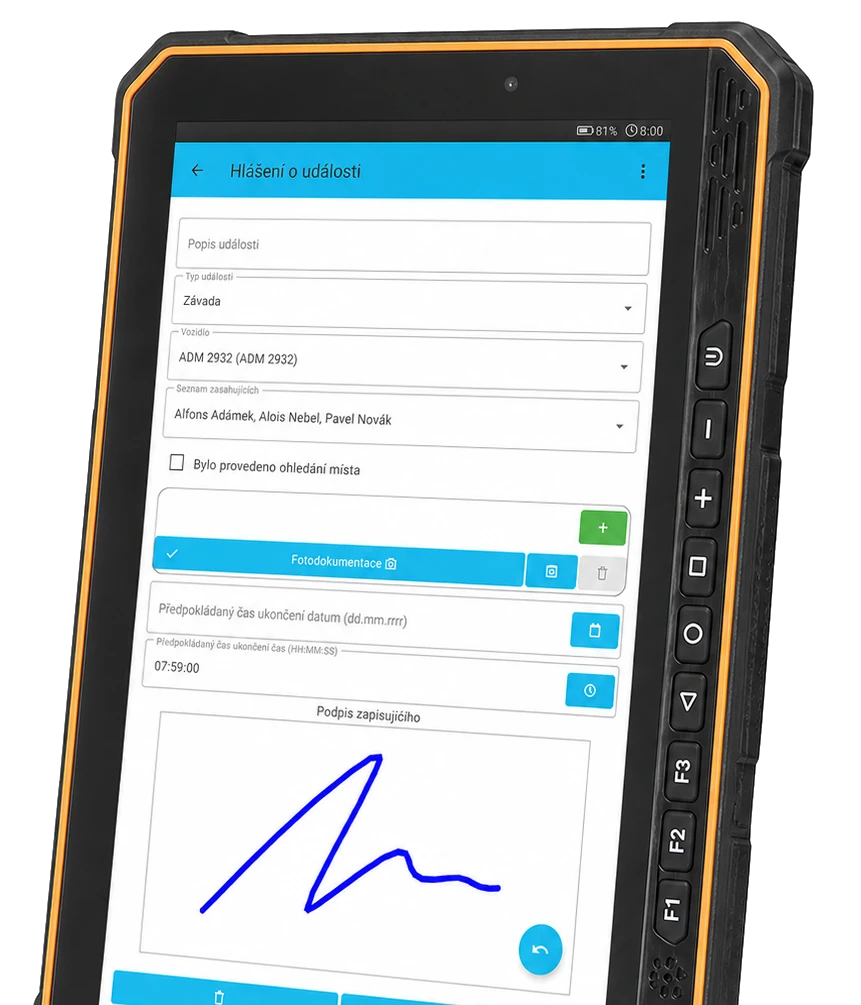
If details need to be documented, the task can only be closed after filling out a prescribed form. This is practical, for example, for equipment inspections, inventory, or technical interventions.
Automatic completion by events
For certain workflows, a task can be linked to a specific event. Once fulfilled, the system automatically evaluates the task as completed.
Types of tasks
TOUCHGUARD supports several task entry modes, so the system covers both one-time interventions and regular, long-term planned activities.
One-time tasks
Suitable for extraordinary or ad hoc requirements, such as performing an inspection, resolving a defect, replenishing materials, or a one-time service intervention.
Repeated tasks
After completion, the task automatically reappears after a set period. This mode is practical for regular inspections, maintenance, or internal operational routines.
Scheduled tasks
Ideal for long-term scheduled activities, such as audits, preventive inspections, or regular operational tasks with a precisely defined execution deadline.
Expansion and integration
For frequently repeated workflows, task templates can be used to speed up entry and help maintain a uniform standard across locations or teams. Attachments such as photos, instructions, documentation, or other files required to perform the activity can also be added to tasks.
Link to patrols and checkpoints
Tasks can be set with a condition for an active patrol, a scanned checkpoint, or both simultaneously, which is suitable for security operations, service inspections, and precisely defined field procedures.

I want to know more about patrols
Integration with digital forms
A task may require filling out a form, so the worker sends not just a confirmation, but also a structured output from the inspection or intervention.
I want to know more about forms
Where to use tasks
The Tasks feature is applicable wherever there is a need to assign field activities, monitor deadlines, and have retroactive traceability of results.
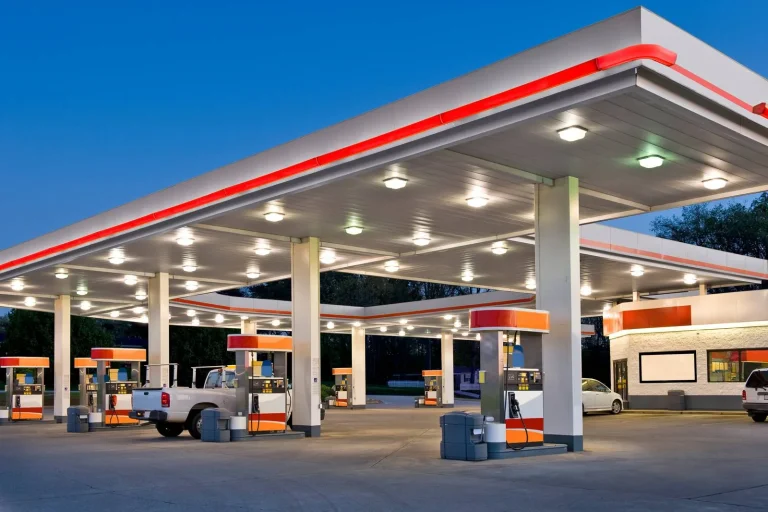
Security and safety services
- Extraordinary tasks during a shift.
- Inspections restricted by an active patrol, a scanned checkpoint, or a combination thereof.
- Confirmation of task completion directly on mobile.
Manufacturing and technical operations
- Preventive equipment maintenance.
- Long-term planned operational activities.
- Records of task completion including deadlines and instructions.
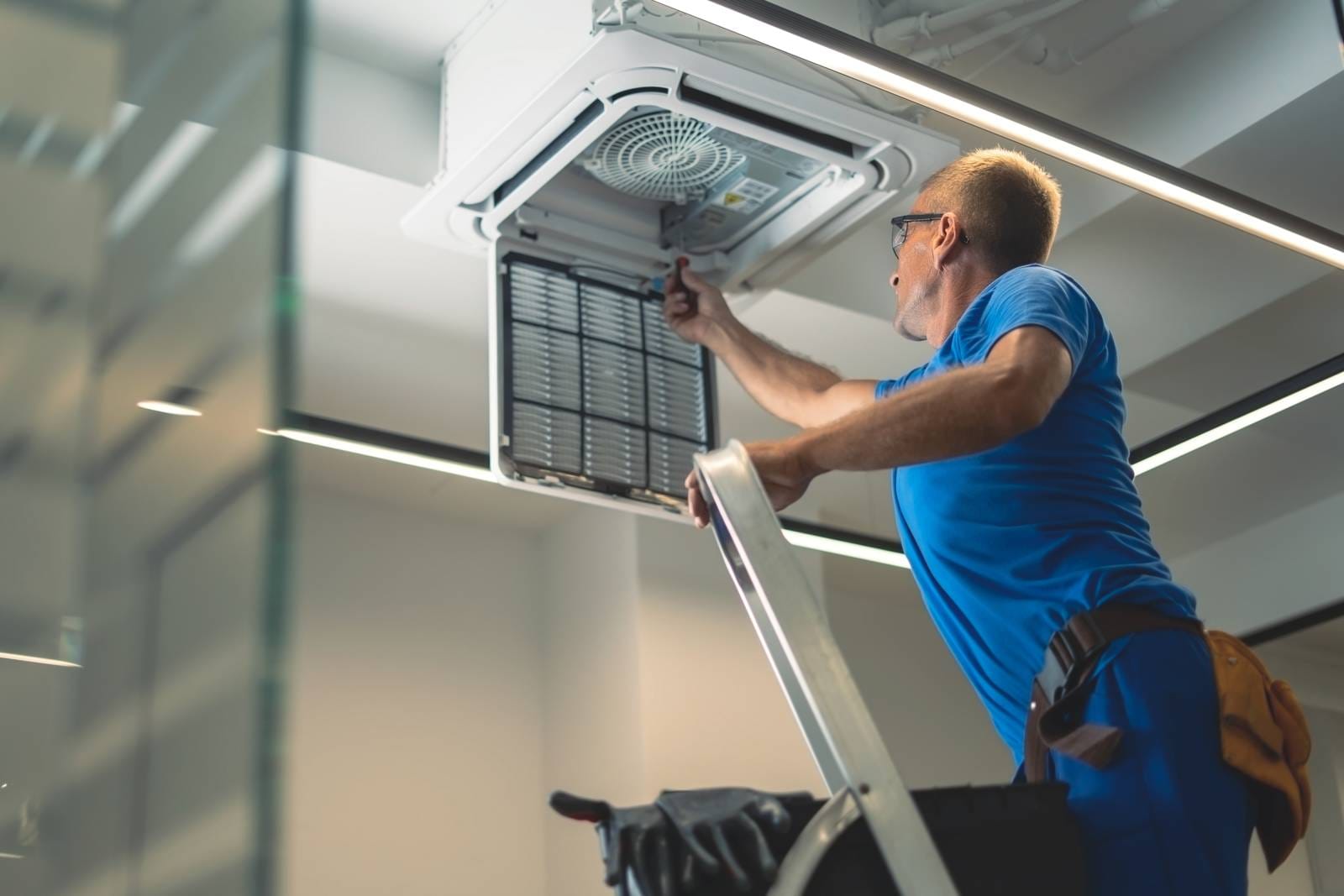
Facility management and building administration
- Planning regular operational inspections.
- Assigning service and maintenance tasks.
- Documenting results via a form or attachment.
Internal company workflow
- Assigning tasks to specific persons or mobile terminals.
- Unifying processes using templates.
- Connection to other TOUCHGUARD system modules.
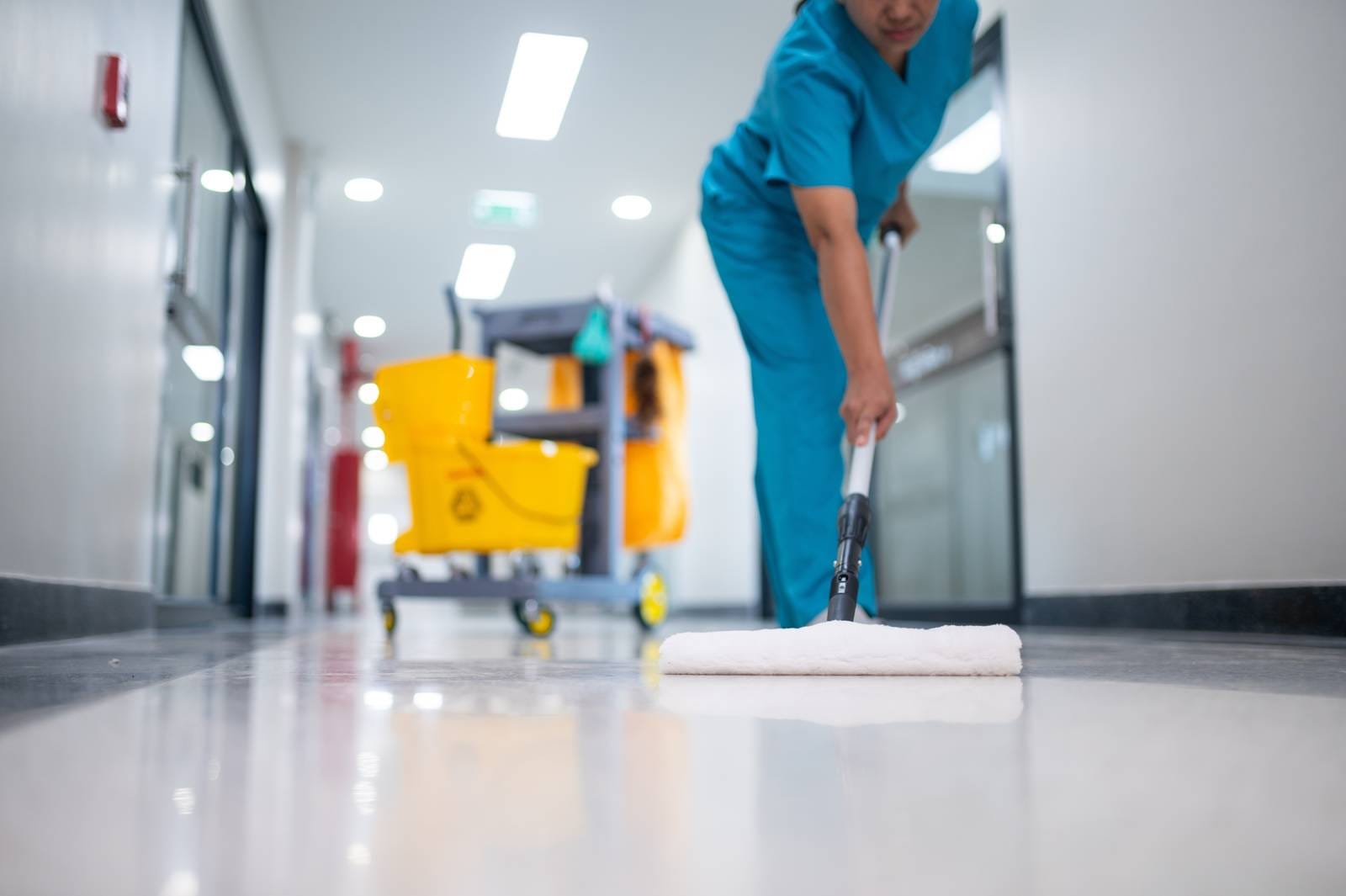
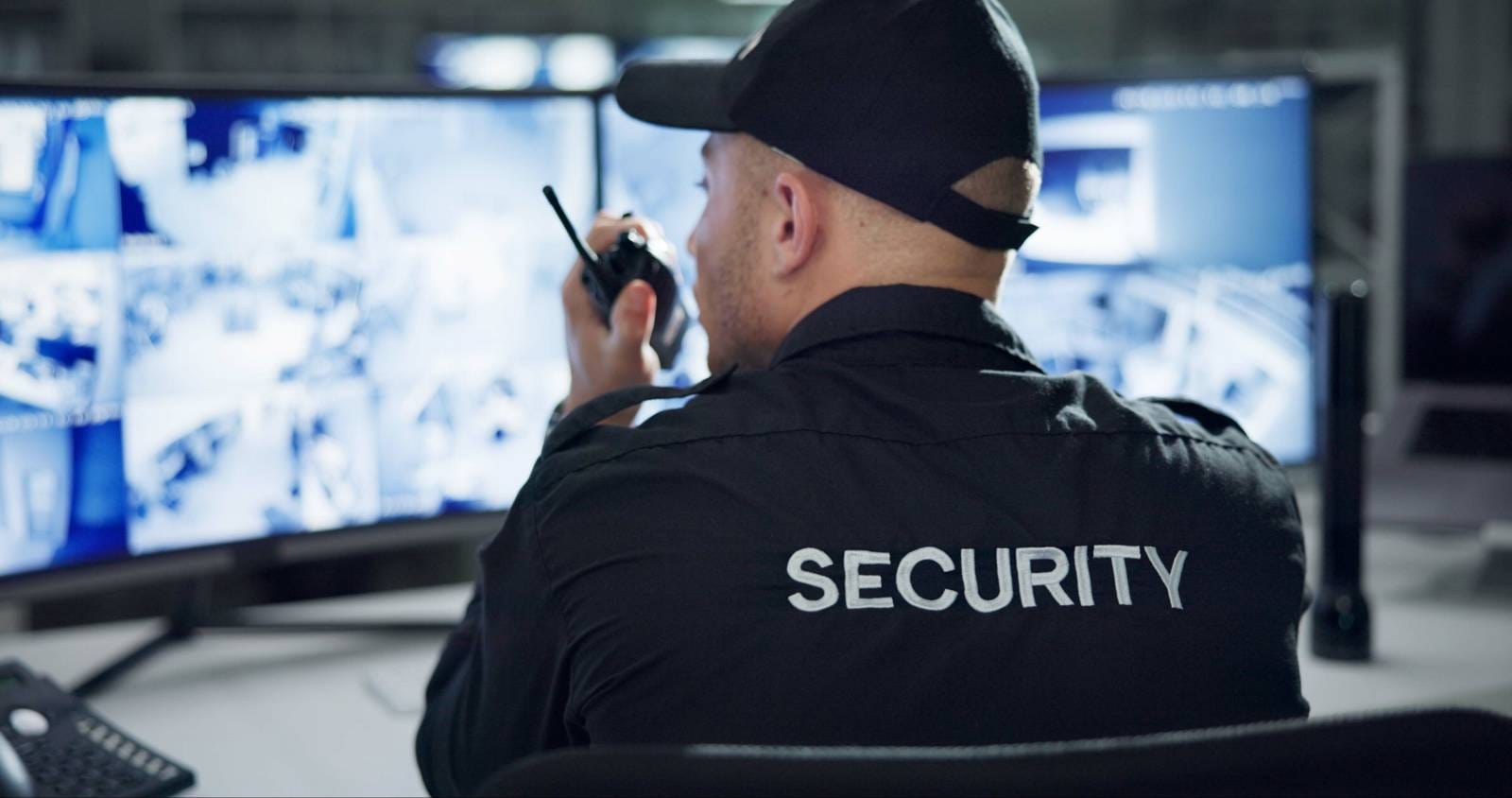
Who is the solution suitable for


Frequently asked questions
Can a task be assigned to a mobile terminal?
Yes, a task can be displayed on a specific mobile terminal. In such a case, it will be visible to every user who logs into that terminal, unless it is also restricted to a specific user.
Can a task be assigned to a specific worker?
Yes, a task can be assigned to a specific user so that it is only visible to the designated person after logging in. If no user is selected, the task may be available to all users at the given location, depending on the settings.
Can patrol and checkpoint conditions be used simultaneously?
Yes, both conditions are independent of each other. You can use only the patrol, only the checkpoint, or both restrictions at the same time.
Can task completion be restricted to a specific checkpoint?
Yes, a specific checkpoint can be set for a task. The task may appear on the terminal, but it can only be completed after scanning the required checkpoint.
Can task completion be restricted to an active patrol?
Yes, an active patrol condition can be set for a task. In such a case, the task can only be completed while the required patrol is currently running.
Can the application be locked to prevent the phone from being misused for private purposes?
Yes, TOUCHGUARD includes a "guard" function that locks the phone to the required purposes only and prevents misuse of the device for private use. This makes it impossible to browse the internet or use social networks. This function is optional.
How can a task be completed?
A task can be completed by selecting a final status, filling out a form, or performing a defined event. The specific method is set by the administrator when creating the task.
How can a task be entered into the TOUCHGUARD system?
Tasks are created by an administrator in the web interface, where they set the task type, description, deadline, and recipient. A task can be assigned to a specific user or a mobile terminal.
How to get a sample solution?
Just contact us and we will be happy to present you with a solution according to your type of operation.
Is it also possible to use location data?
Yes, location data can be part of the solution if the company uses GPS.
What does completing a task with a final status mean?
A list of created task statuses is displayed on the mobile terminal, and the task is closed after selecting a final status. Final statuses are used, for example, to confirm that a task has been resolved, closed, or rejected.
When is form-based completion used?
Form-based completion is suitable when a simple confirmation is insufficient and details must be documented. The task is closed only after the prescribed form is completed and submitted.